 Presence
Presence
PresenceAs a presentation: Comfort functions - an overview on a few slides, also suitable for training (arrow keys to browse, F for full screen).
Presence is an optional function. Once it is set up, every control element can decide for itself what should happen when the state changes – and every switching time in which states it is executed at all. Three states are distinguished:
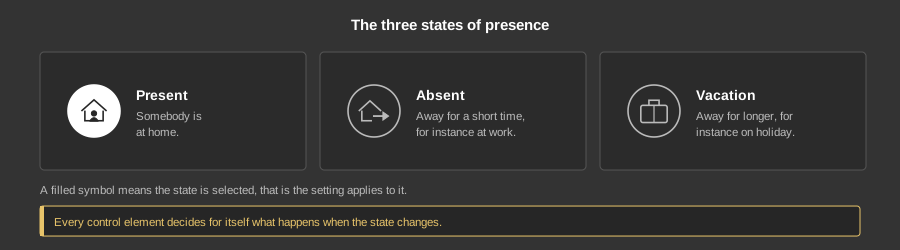
The shading can therefore be set to work when present and absent, but not during a vacation. Likewise any switching times can be defined, for instance for outdoor lighting.
The names of the three states can be chosen freely: the control element Presence has the parameters Text present, Text absent and Text holiday. Instead of “Present” a hotel can for example display “Open”; the symbols stay the same.
A control element that supports presence (all elements from Building automation Block) has no variable links of its own. It is always linked to the matching function block; the variables sit at the function block.
A click on the symbol at the top right of the control element opens the popup dialog. At its top left there are three symbols: clock, presence and gear.
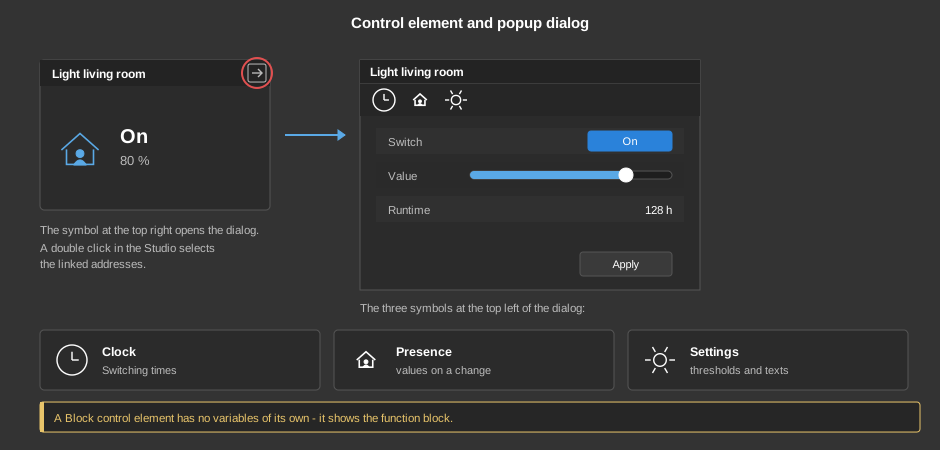
Tip: A double click on the element selects the linked addresses in the variable window of the Studio.
The clock symbol leads to the switching times. The symbol at the bottom left creates a new switching time, the symbol at the bottom right deletes an existing one. A click on an entry opens it in detail.
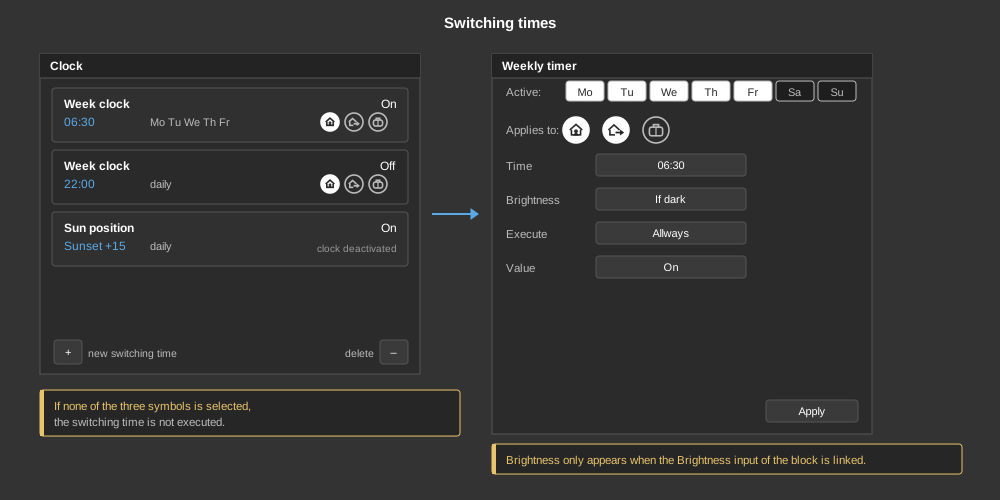
In the detail view the type of the clock is set on the left:
On the right it is set when the switching time should apply: present, absent and vacation. A darkened or filled symbol means active. A switching time can therefore run only while somebody is at home. If none of the three symbols is selected, the switching time is not executed; the overview then shows clock deactivated. The three symbols only appear if the project contains a function block Presence.
Further settings of a switching time:
Appointments from a calendar: The switching times can also be taken from a calendar in iCal format, either via a URL, from a file or from the clipboard. Each appointment produces two switching times, one for the start and one for the end. Holiday calendars or occupancy plans can be taken over without any typing.
The middle symbol holds what should happen when the state changes. Taking a light as an example: when changing from present to absent or vacation the light is switched off, when changing back to present it is set to 100 % – but only if it is dark.
Tip: The choice bright or dark only appears when the Brightness input of the function block is linked. The threshold for bright and dark is set in the settings (gear symbol).
For this the project needs the function block Presence and the control element Presence:
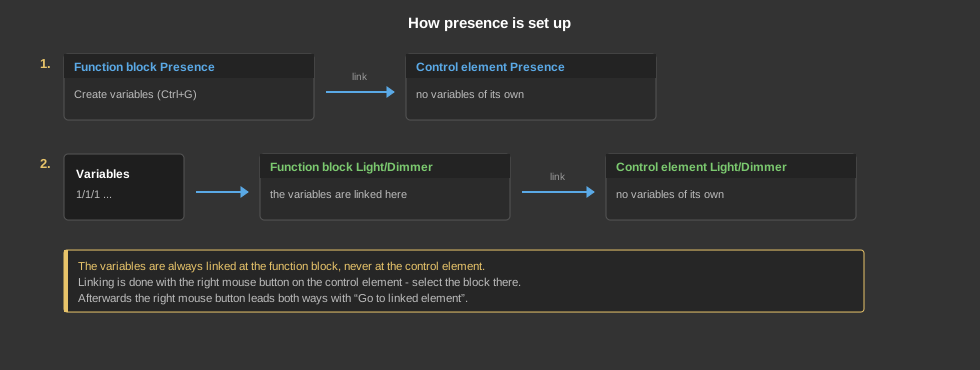
After that every Block control element knows about presence. Taking Light/Dimmer as an example, it applies to all elements of this group:
Tip: After linking, the right mouse button offers the submenu Go to linked item. It switches directly to the page with the function block – and from the function block back to the control element.
Changing the state: The state is changed at the control element Presence. The function block additionally has the input Presence (0 = present, 1 = absent, 2 = vacation) – the state can therefore also be set from the program, for instance by a push button or an alarm system. The three outputs Present, Absent and Vacation report the current state as a bit and can be used further in the program.