 Images
Images
ImagesMenu Project – Images, in the visualization editor also via the picture symbol in the toolbar.
This is where the graphics of the project are managed: background images, symbols and everything a control element displays. The graphics are stored inside the project itself – there are no image files next to it on the controller, and when a project is passed on everything comes along.
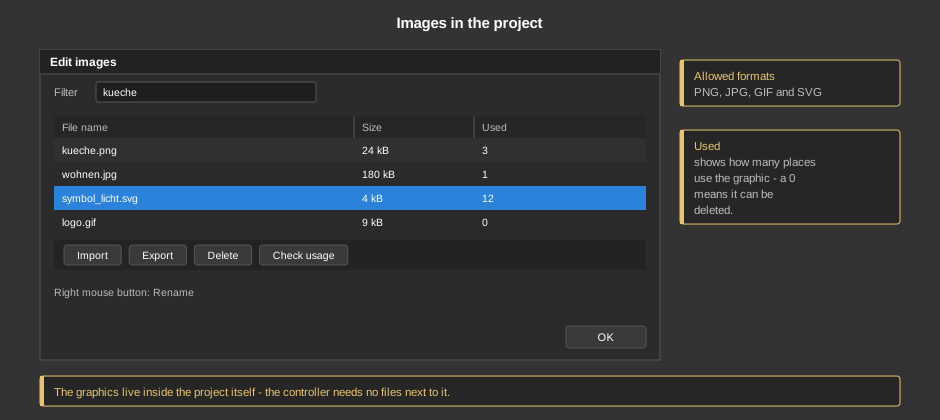
PNG, JPG, GIF and SVG can be imported.
Tip: Graphics are transferred to the controller with the project and loaded from there into the APP. Very large images make the project big and the first page build-up slow – a background image should not be larger than the resolution of the target device.
| Import | Select one or more files. If a graphic of the same name already exists, you are asked whether it should be overwritten. |
| Export | Writes the selected graphics back into a directory as files. |
| Delete | Removes the selected graphics from the project (also with the Del key). |
| Check usage | Fills the column Used with the number of places where the graphic is needed. A 0 means it can be deleted safely – this is how a project that has grown over the years becomes lean again. |
| Filter | Shows only graphics whose name contains the entered text. |
| Rename | Via the right mouse button. Caution: the references in the control elements are not changed along – an element that still uses the graphic under the old name shows nothing afterwards. Check with Check usage beforehand. |
The column Size shows how much space a graphic takes up in the project.